

Get started
Fretscribe turns a recording into tab for guitar, bass, ukulele or mandolin. This guide walks through it once, from the recording to the tab you practise with.
You need two things:
- The Fretscribe app on Android 16 or newer, iOS or iPadOS 26 or newer, macOS 26 or newer, or Windows 11.
- Bandroom on a computer on the same Wi-Fi: a Mac with Apple silicon, or a PC with Windows 11. Bandroom writes every tab. Without it the app opens the tabs you have made, and cannot write a new one.
Fretscribe is an early version. It is not in any app store and the downloads are not signed yet, so each device needs a few extra steps the first time: see Download.
The first time you open the app, it shows three points and Get started, then asks what you play. It asks for the microphone only when you first record.
Download
Download the file for your device from the latest release on GitHub. The links below always get the newest version, and the download page has them per device.
| File | For |
|---|---|
fretscribe-android-arm64-v8a.apk | Fretscribe for most Android phones and tablets |
fretscribe-android-universal.apk | Fretscribe for Android, every type of processor |
fretscribe-ios-unsigned.ipa | Fretscribe for iPhone and iPad, a test version that needs a few steps with your Apple account |
fretscribe-macos-arm64.zip | Fretscribe for a Mac from 2020 or later |
fretscribe-windows-x64.zip | Fretscribe for Windows 11 (x64), an early version, not tested on a real PC yet |
brasscribe-bandroom-macos-arm64.zip | Bandroom for a Mac from 2020 or later: your computer does the heavy work |
brasscribe-bandroom-windows-x64.zip | Bandroom for Windows 11 (x64): your computer does the heavy work |
scribe-core-macos-arm64.tar.gz | The scribe-core command-line tool, for the tech person |
scribe-core-linux-x86_64.tar.gz | The scribe-core command-line tool for Linux (x86-64) |
scribe-core-windows-x86_64.zip | The scribe-core command-line tool for Windows (x64) |
SHA256SUMS | Checksums to check the downloads |
- Android: needs Android 16 or newer. Allow installs from your browser or file manager, then open the APK. It updates an earlier version in place, and your songs stay.
- Mac: needs macOS 26 or newer. The apps are not notarised yet. Unzip, move the app to Applications and open it once. macOS stops it; open System Settings › Privacy & Security, choose Open Anyway and confirm.
- Windows: needs Windows 11 (x64). Fretscribe for Windows is a preview: it has not yet been tried by hand on a Windows PC. The apps are not signed yet. Unzip the folder anywhere and start the
.exeinside. If Windows SmartScreen stops it, choose More info, then Run anyway.
iPhone and iPad (test build)
Fretscribe is not in the App Store. The file fretscribe-ios-unsigned.ipa is the app without a signature, and an iPhone or iPad does not install an app that is not signed. So you sign it yourself, with your own Apple Account; a free account is enough, and a free signature lasts seven days. The steps are the same as for Brasscribe Play: how to sign and install a test build, with Fretscribe's file in place of Brasscribe's.
Your computer
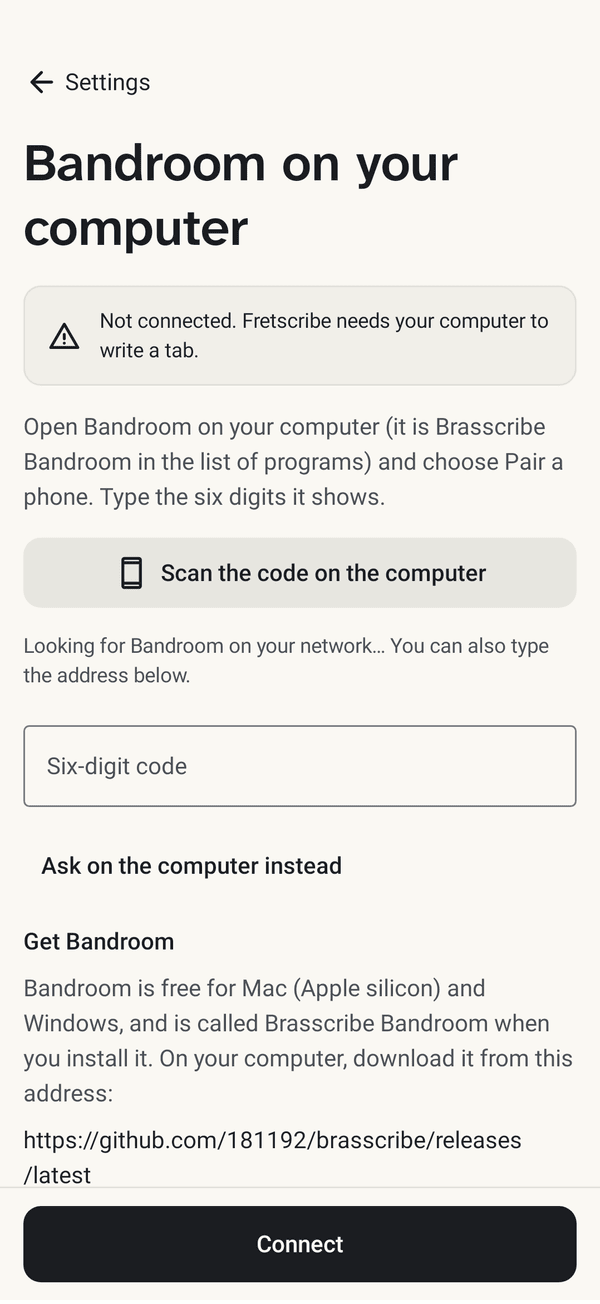
Bandroom on your computer writes down the notes and sends the tab to your phone over Wi-Fi. The recording goes from your phone to your own computer and nowhere else.
On a Mac with Apple silicon (macOS 26 or newer) or a PC with Windows 11 (x64), install Bandroom from the download. In the list of programs it is called Brasscribe Bandroom: it is the same program Brasscribe uses, and it runs quietly in the background. The first run downloads what it needs, about 10 GB, so keep about 15 GB free; the internet is needed only for these downloads. Brasscribe's guide has the first run in full.
Then connect your phone:
- On the computer, open Bandroom and choose Pair a phone. It shows a six-digit code and a QR code.
- Put your phone on the same Wi-Fi as the computer.
- In Fretscribe, choose Connect on Home, or open Settings, then Bandroom on your computer.
- Choose Scan the code on the computer, or type the six digits and choose Connect. Ask on the computer instead lets you say yes on the computer.
You do this once for each phone or tablet. Until it is done, Home says Not connected, and Fretscribe cannot write a tab.
Your instrument
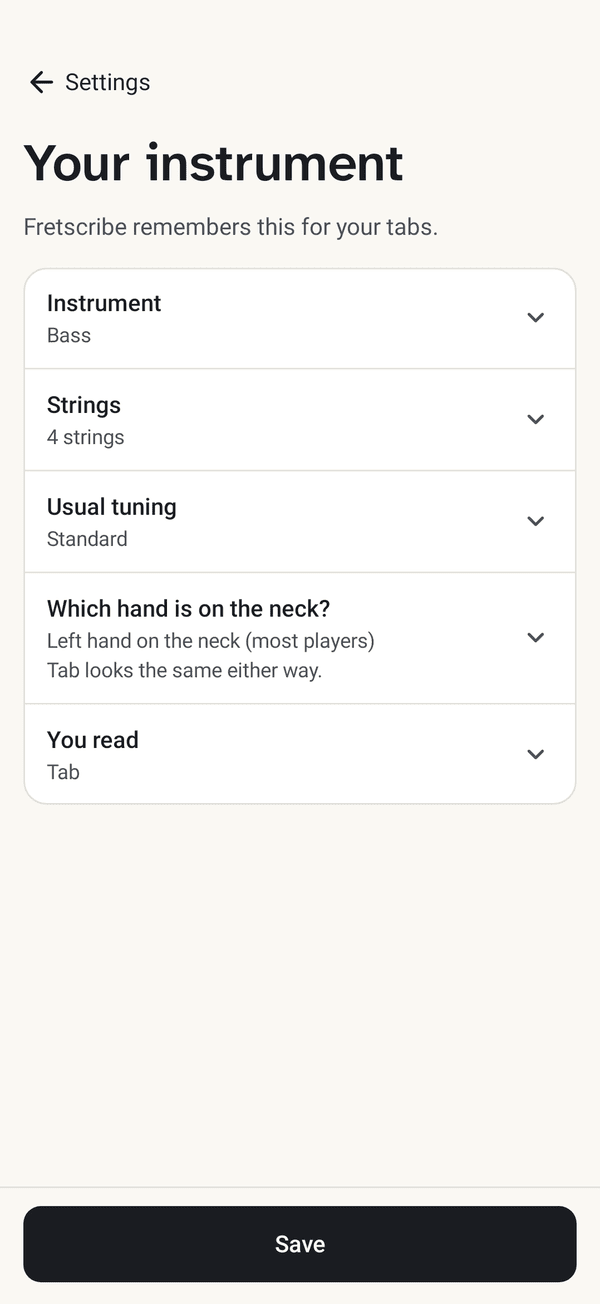
Fretscribe asks this once and remembers it for your tabs. You can change it in Settings, and Not now starts you on a guitar in standard tuning.
- Instrument: guitar, bass, ukulele or mandolin.
- Strings: how many your instrument has.
- Usual tuning: standard, a lowered or dropped tuning, DADGAD or an open tuning.
- Which hand is on the neck? Left hand for most players; right hand for a left-handed instrument or one played upside down. Tab looks the same either way.
- You read: tab.
Open or record
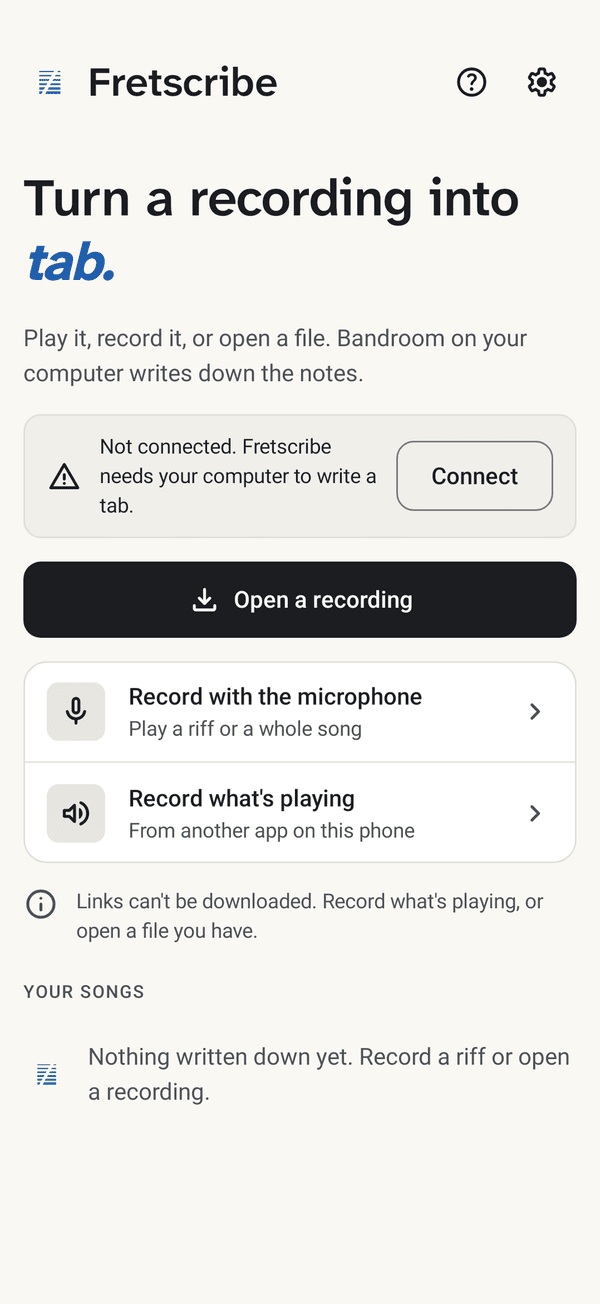
On Home, choose one:
- Open a recording: a sound file you have.
- Record with the microphone: play a riff or a whole song.
- Record what's playing: what another app on the phone is playing.
Fretscribe cannot download from a link. Record what's playing, or open a file you have. It does not open sheet music or tab files yet. What you have written down is under Your songs, each with its instrument, its tuning and the notes left to check.
What is this?
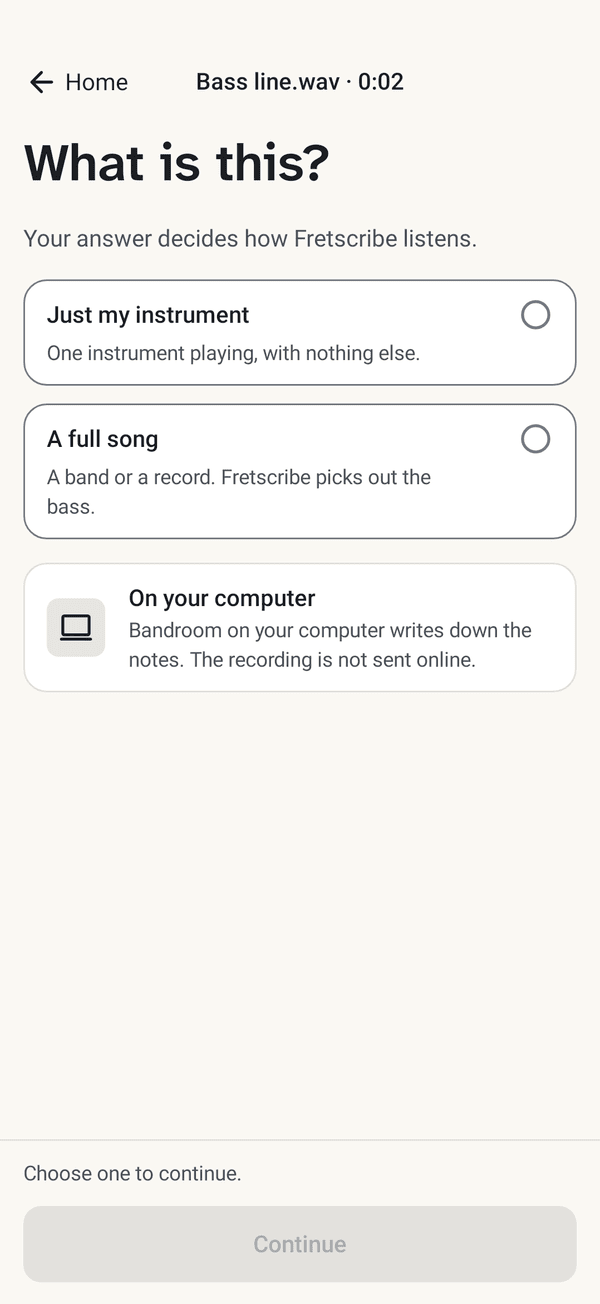
Fretscribe asks what the recording is, because it listens differently to each:
- Just my instrument: your instrument playing alone.
- A full song: a band or a record. Fretscribe picks out your instrument's part.
Then Bandroom on your computer writes down the notes. The screen names each step and shows how far it has come: listening for the beat, writing down the notes, placing them in bars, choosing strings and frets, laying out the tab. Keep Fretscribe open until the tab is ready, or choose Cancel.
Check the song
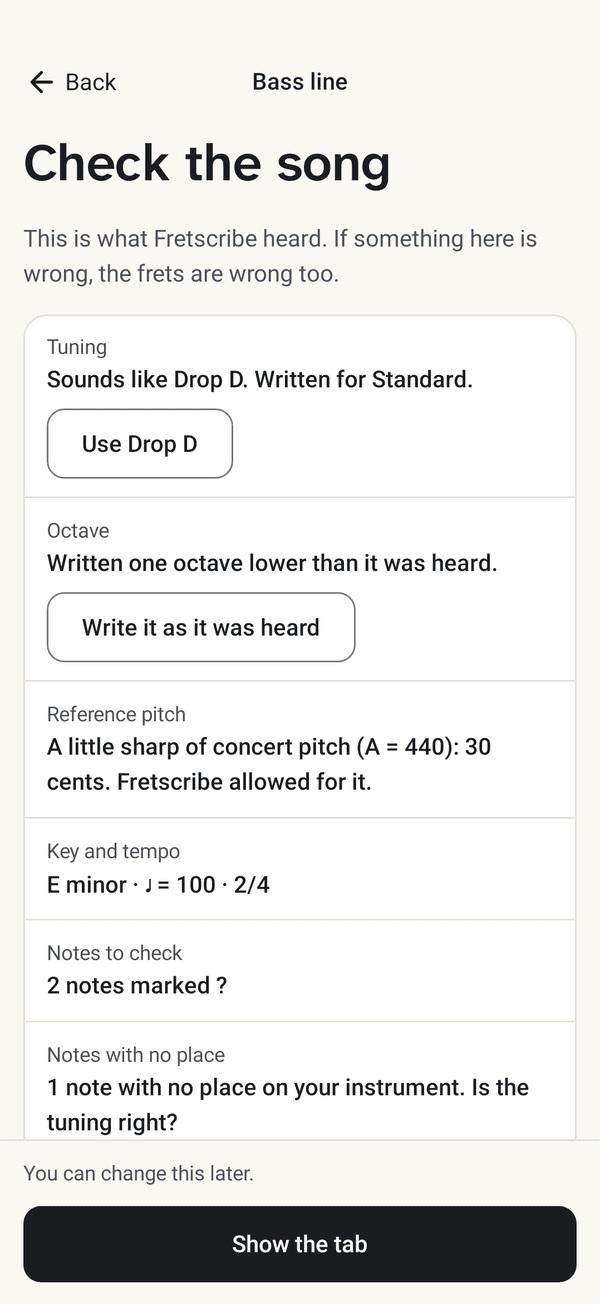
Before any tab, Fretscribe shows what it heard. If something here is wrong, the frets are wrong too, so look it over:
- Tuning: when the recording sounds like another tuning than yours, it says so and offers it.
- Octave: when the notes were moved an octave to fit your instrument, you can have them written as they were heard.
- Reference pitch: shown when the recording is a little sharp or flat of concert pitch. Fretscribe allows for it.
- Key and tempo.
- Notes to check: how many notes it was not sure about. They are marked ? in the tab.
- Notes with no place: notes that cannot be played on your instrument as it is tuned. This usually means the tuning is wrong.
Choose Show the tab. You can change the answers later.
Read and practise
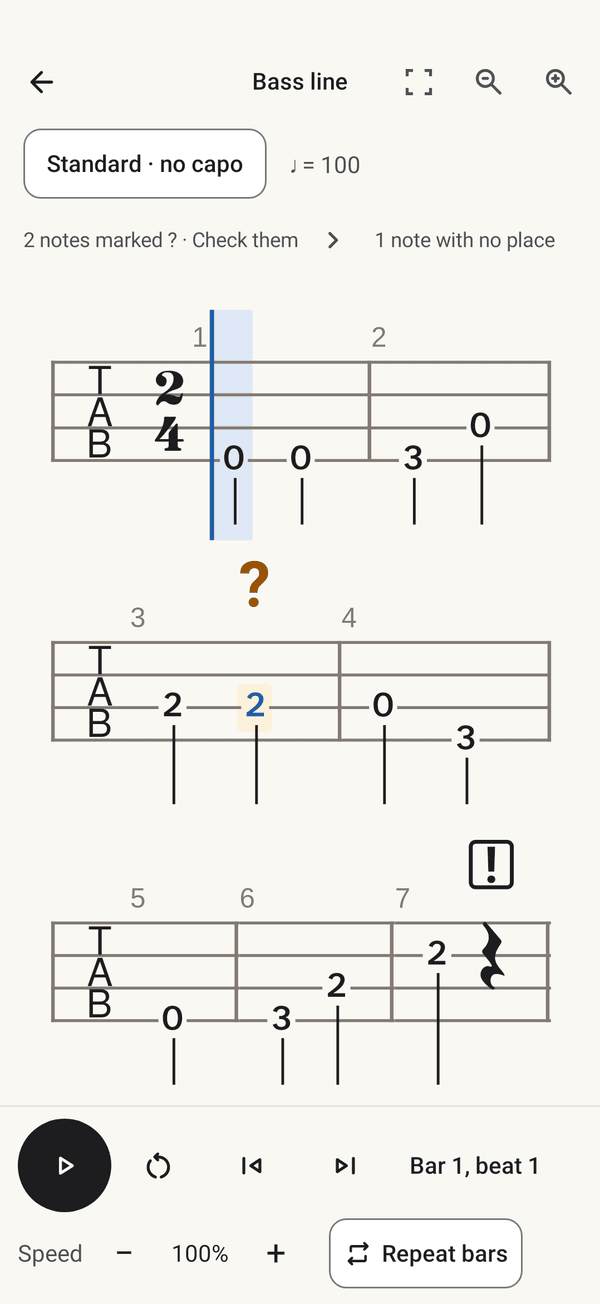
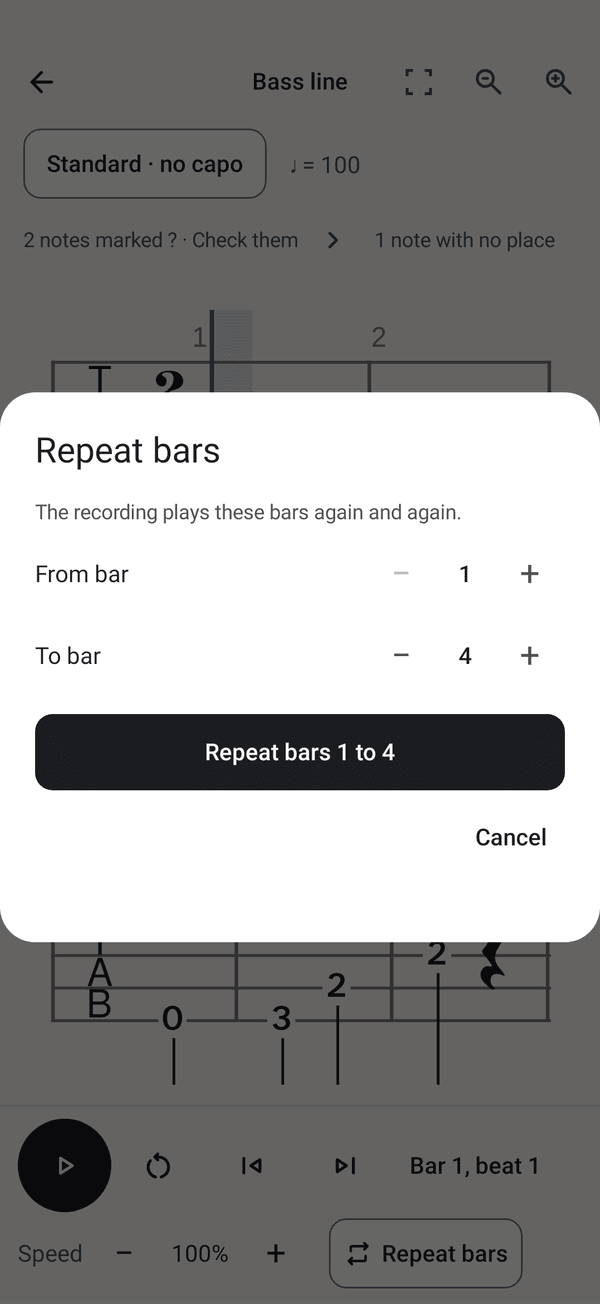
The tab shows your part, with the tuning and the capo at the top. The player sits below it:
- Play plays your recording and follows the tab, bar and beat. The arrows go to the previous and the next bar.
- Speed plays the recording slower or faster.
- Repeat bars plays the bars you choose again and again.
- The buttons at the top make the tab larger or smaller, or fill the screen with it.
A note Fretscribe was not sure about has a ? over it. Choose the note, or Check them, and Fretscribe says where it is and offers Play this bar slowly, so you can hear it yourself. A ! marks a note that has no place on your instrument as it is tuned.
The marks find some of the wrong notes, not most of them, so a note without a mark can still be wrong. You cannot change a single note in the app yet. A wrong tuning or octave is put right in Check the song, and the computer writes the tab again.
If something goes wrong
- Not connected: check that Bandroom is running on the computer and that the phone is on the same Wi-Fi, then choose Connect. Guest and office Wi-Fi often stop devices from seeing each other.
- The computer no longer recognises this phone: pair it again, as under Your computer.
- The app says to update Fretscribe, or to update Bandroom: the app and Bandroom must be from the same release. Download the one it names again.
- The frets look wrong everywhere: go back to Check the song and look at the tuning and the octave.