

User guide
Get started
Brasscribe Play turns a recording into a score for your brass band. This guide walks through it once, from the recording to the printed parts.
Brasscribe Play runs on iPhone, iPad, Mac, Android and Windows. It is in early testing, so there is no store listing yet. Android phones, Macs and Windows PCs can download it (Windows as a preview). For iPhone and iPad there is a test build that the band's tech person signs and puts on the device.
The first time you open the app, it shows three points and Get started, then asks what you play. It asks for the microphone only when you first record.
Solo or full band? A full band is always written by Bandroom on your computer, on the same Wi-Fi as the phone. Today a single instrument is written by Bandroom too, on every device; Android writes solos on the phone itself again from the next release. See Bandroom on your computer.
Download
Download the file for your device from the latest release on GitHub. The links below always get the newest version.
| File | For |
|---|---|
brasscribe-play-android-arm64-v8a.apk | Brasscribe Play for most Android phones and tablets |
brasscribe-play-android-universal.apk | Brasscribe Play for Android, every type of processor |
brasscribe-play-ios-unsigned.ipa | Brasscribe Play for iPhone and iPad, a test version that needs a few steps with your Apple account |
brasscribe-play-macos-arm64.zip | Brasscribe Play for a Mac from 2020 or later |
brasscribe-play-windows-x64.zip | Brasscribe Play for Windows 11 (x64), an early version, not tested on a real PC yet |
brasscribe-bandroom-macos-arm64.zip | Bandroom for a Mac from 2020 or later: your computer does the heavy work |
brasscribe-bandroom-windows-x64.zip | Bandroom for Windows 11 (x64): your computer does the heavy work |
scribe-core-macos-arm64.tar.gz | The scribe-core command-line tool, for the tech person |
scribe-core-linux-x86_64.tar.gz | The scribe-core command-line tool for Linux (x86-64) |
scribe-core-windows-x86_64.zip | The scribe-core command-line tool for Windows (x64) |
SHA256SUMS | Checksums to check the downloads |
- Android: the apps need Android 16 or newer. Allow installs from your browser or file manager, then open the APK. It updates an earlier version in place, and your scores stay.
- Mac: the apps need macOS 26 or newer. They are not notarised yet. Unzip, move the app to Applications and open it once. macOS stops it; open System Settings › Privacy & Security, choose Open Anyway and confirm. To update, replace the old app in Applications; your scores and settings stay.
- Windows: the apps are not signed yet. Unzip the folder anywhere and start the
.exeinside. If Windows SmartScreen stops it, choose More info, then Run anyway. To update, replace the folder; your scores and settings stay.
iPhone and iPad (test build)
Brasscribe Play is not in the App Store. The file brasscribe-play-ios-unsigned.ipa is the app for iPhone and iPad without a signature, and an iPhone or iPad does not install an app that is not signed. So you sign it yourself, with your own Apple Account (Apple ID). A free account is enough. This is a job for the band's tech person.
- Which devices: an iPhone with iOS 26 or newer, or an iPad with iPadOS 26 or newer.
- Sign and install: use a sideloading tool on a computer: a program that signs the file with your Apple Account and puts the app on the iPhone or iPad. Xcode cannot sign this file. With Xcode on a Mac you build the app from the source code on GitHub instead.
- The first time: the device asks you to turn on Developer Mode (Settings › Privacy & Security) and to trust your account under Settings › General › VPN & Device Management.
- Scores come from the computer at first: a newly installed test build makes its scores through Bandroom on your computer. To write down a solo on the iPhone or iPad itself, the app needs its listening files, and it does not yet know where to get them: the tech person fills in Download address in the app's Settings, under On this device › Details for the band's tech person.
- Seven days: a signature from a free Apple Account lasts 7 days. After that the app does not open until you sign it again. Sign with the same account and the same tool, and your scores and settings stay.
- A few apps: a free Apple Account can keep only a few apps like this on a device at a time.
- Not tried on a device yet: the file is built and checked for every release, but nobody has installed it on an iPhone or iPad this way yet, so reports are welcome.
Windows: Bandroom for Windows is in the table above. It is built on Windows for every release, but has not been tried by hand on a Windows PC yet, so reports are welcome. Brasscribe Play for Windows is in the table as a preview: it is still in testing, and it has the music stand, the Appearance setting and What do you play?.
What do you play?
The first time, Brasscribe asks what you play. It shows your part first, and Mute my part mutes it when you play along.
- Choose your instrument: Cornet, Trumpet (in B♭), Soprano (E♭ cornet), Flugelhorn, Tenor Horn (in E♭), Baritone, Euphonium, Trombone, Bass Trombone, E♭ Bass, B♭ Bass or Percussion. Then choose which part you play.
- Brasscribe shows how you read: treble clef in B♭, treble clef in E♭, or bass clef as it sounds. Your part is written in that clef.
- Choose I conduct or listen if you don't play a part, or Not now to decide later.
Change it any time under Settings › What you play. New scores open on your part; scores you already have keep the part you chose for them.
If the band has no part for your instrument, Brasscribe says which part you get instead. Every part says where its notes came from: From the recording, Arranged from the band's harmony when nobody played it on its own, or Nothing to play in this arrangement when it is empty.
For a soloist with a band, Who plays the tune? can put the tune on your own part, but only when your instrument can carry it. A trumpet takes the lead part, so it has the tune already.
Brasscribe can't write down percussion from a solo take yet. For the percussion part, record the band: you get a percussion part when the recording has drums.
Open or record
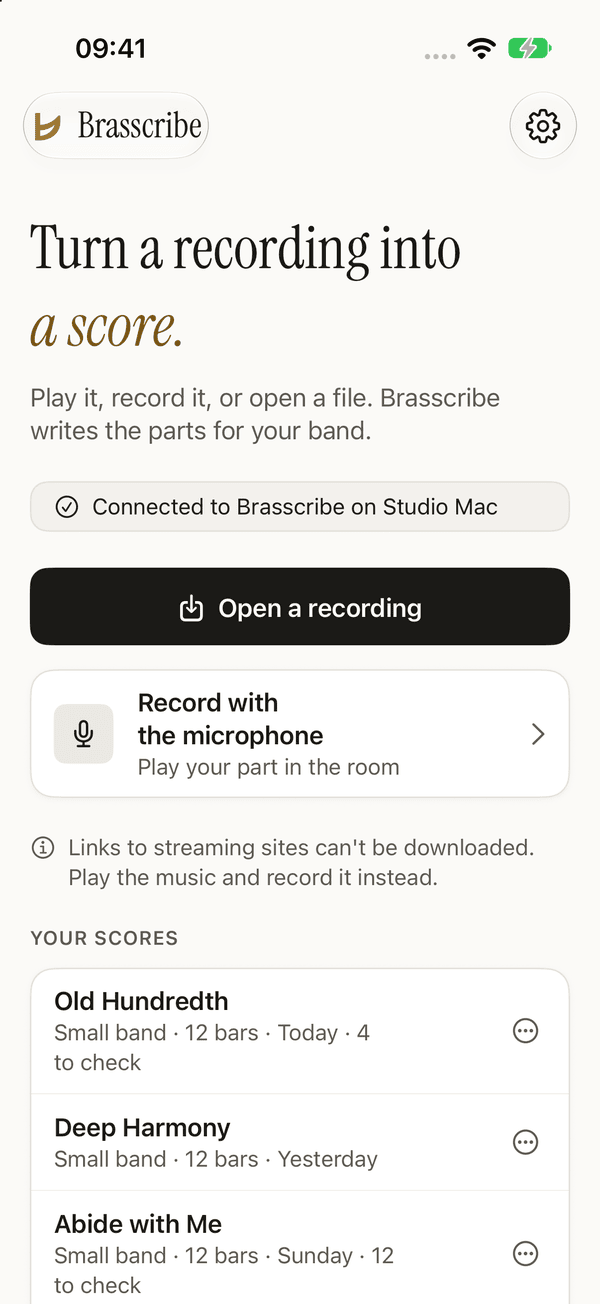
On the home screen, choose one:
- Open a recording: an audio or video file you have (MP3, WAV, M4A, MP4 and most other formats). You can also share a file to Brasscribe from another app, or drop it on the window on a computer.
- Record: play your part, or record the rehearsal, with the microphone.
- Record what's playing (Android, Mac and Windows): record the sound from another app, or everything the device plays.
Links to streaming sites can't be downloaded. Play the music and record it instead. Streaming apps usually block recording, so the microphone is the way round that.
Your scores are listed under Your scores on the home screen.
What is this?
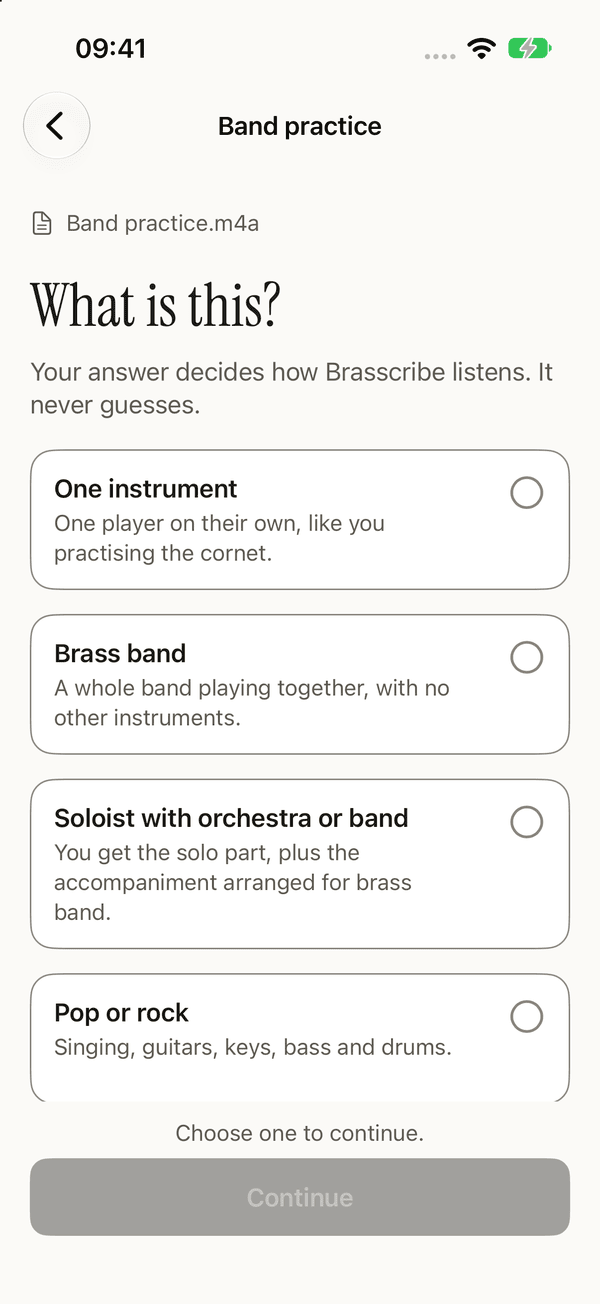
Brasscribe asks what the recording is. Your answer decides how it listens. It never guesses, and nothing is chosen for you the first time.
| Choice | For | You get |
|---|---|---|
| Brass band | A whole band playing together | Every part |
| One instrument | A single player, for example you practising | One part |
| Soloist with orchestra or band | A soloist in front of an orchestra or band | The solo part, and the accompaniment arranged for brass band |
| Pop or rock | Vocals, guitars, keys, bass and drums | An arrangement for brass band |
Not sure? Choose Brass band. You can change it later. Below the choices, the app says where the score will be made: on this device, or on your computer.
Making the score
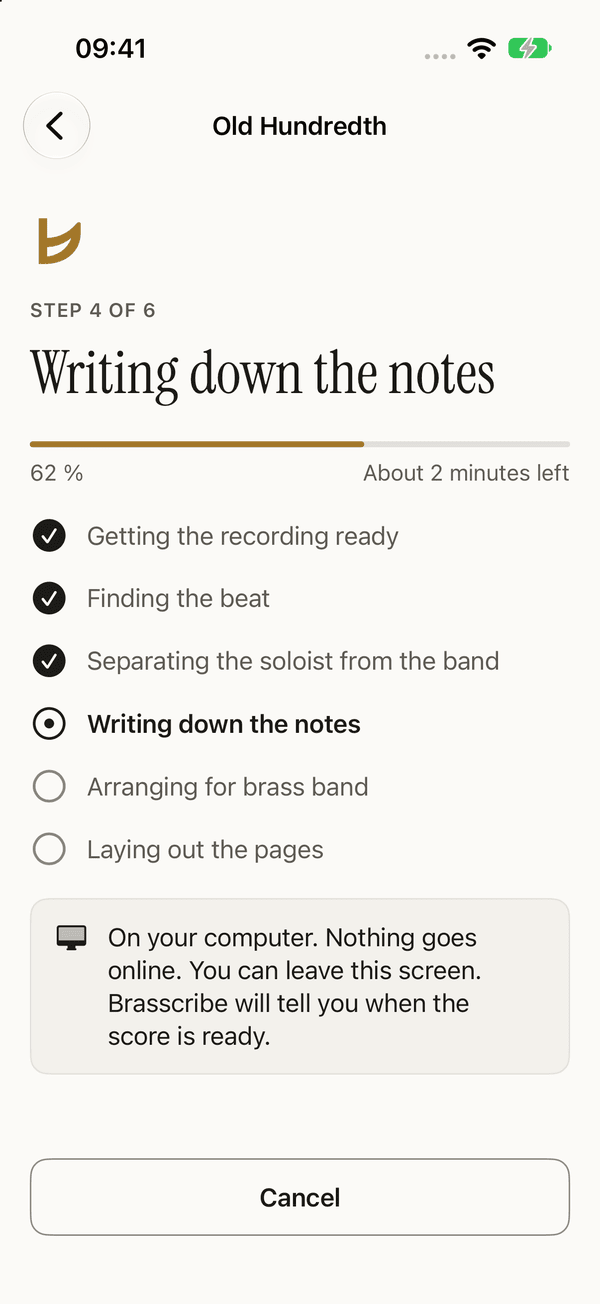
Brasscribe shows each step in plain words, such as Finding the beat and Arranging for brass band, with the percentage and the time left. A few minutes of music usually takes a few minutes.
You can leave the screen. To stop, choose Cancel: the app asks first, and the recording stays in Your scores.
Check the notes
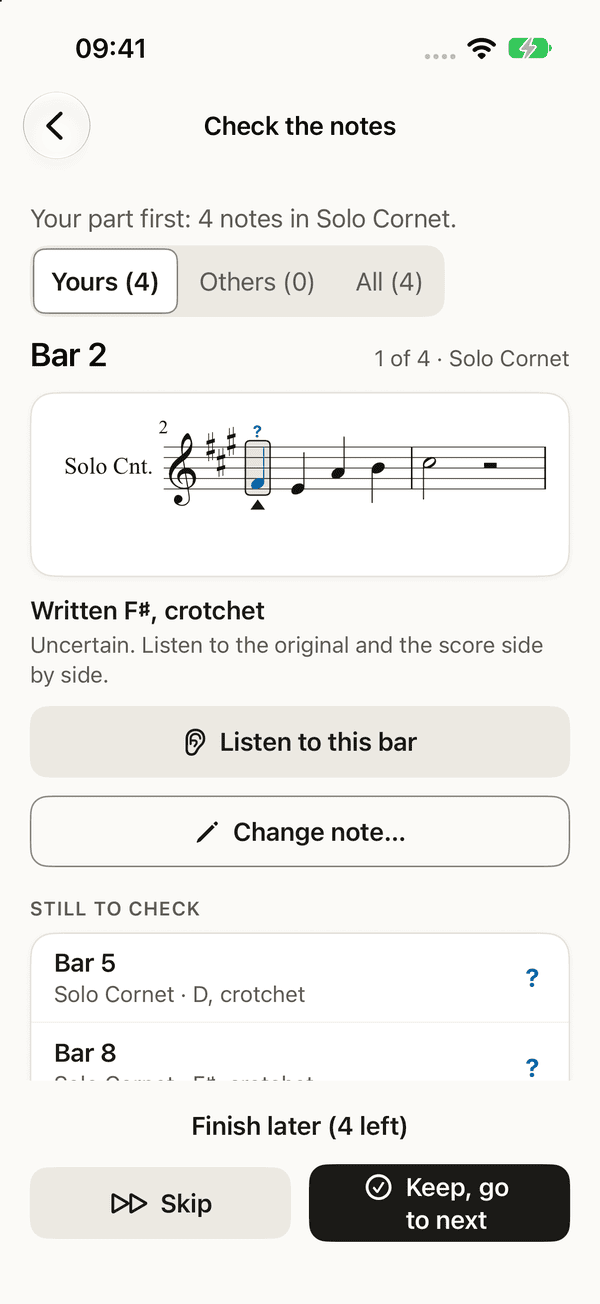
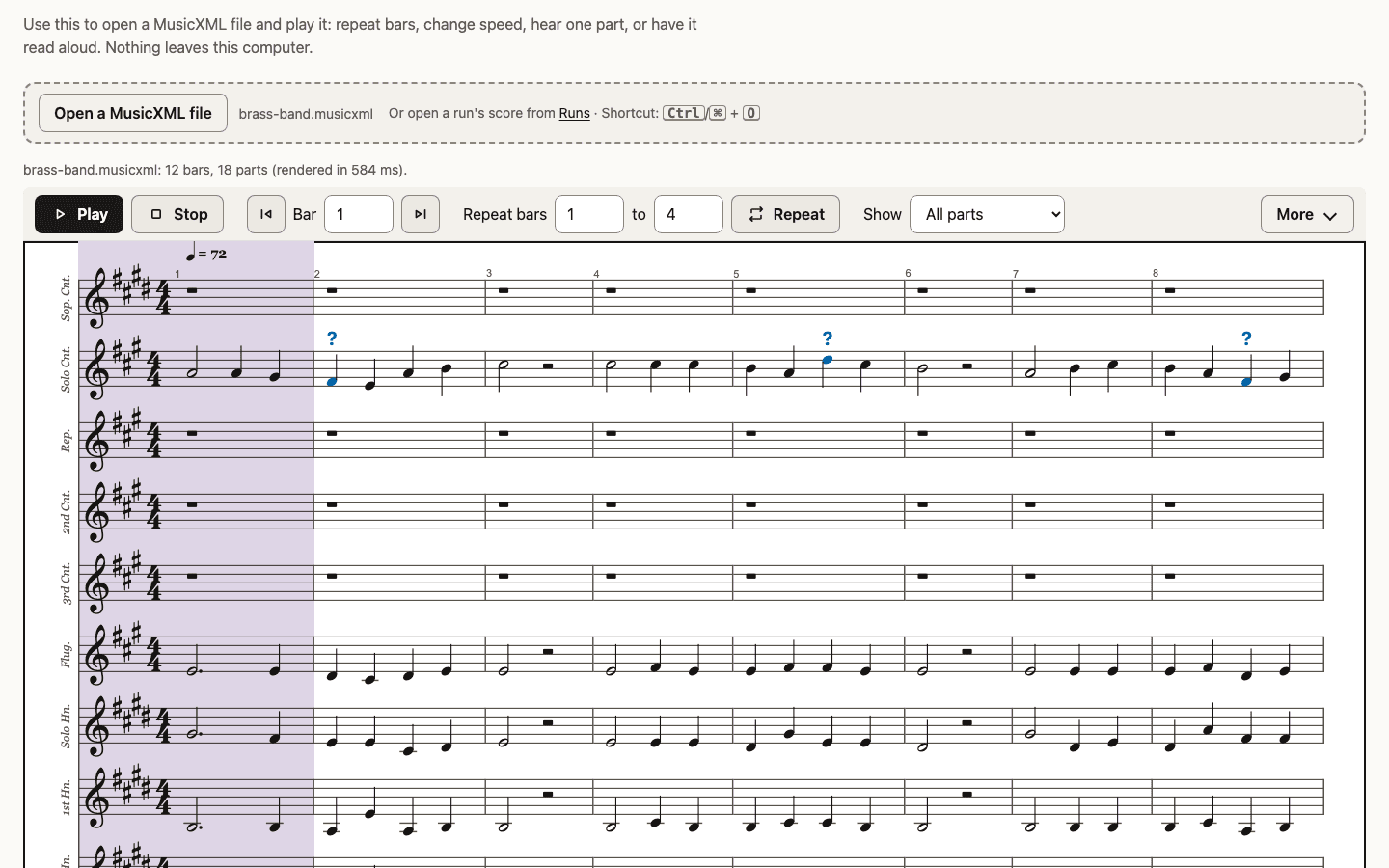
When the score is ready, Brasscribe shows the notes it wasn't sure about, one at a time.
- A question mark above a note means uncertain.
- A question mark in a box means very uncertain.
For each note you see the bar, the part and the note as written. Then:
- Listen to this bar plays that bar from the recording, over and over.
- Keep, go to next if it's right. The question mark is removed.
- Change note… if it's wrong: pick the right note and choose Save. The question mark is removed, and you stay on that note to hear it again.
- Skip leaves the note marked and moves on.
You don't have to check every note now. Finish later keeps the question marks, and "9 notes marked ? · Check them" above the score takes you back any time.
How should the score be?
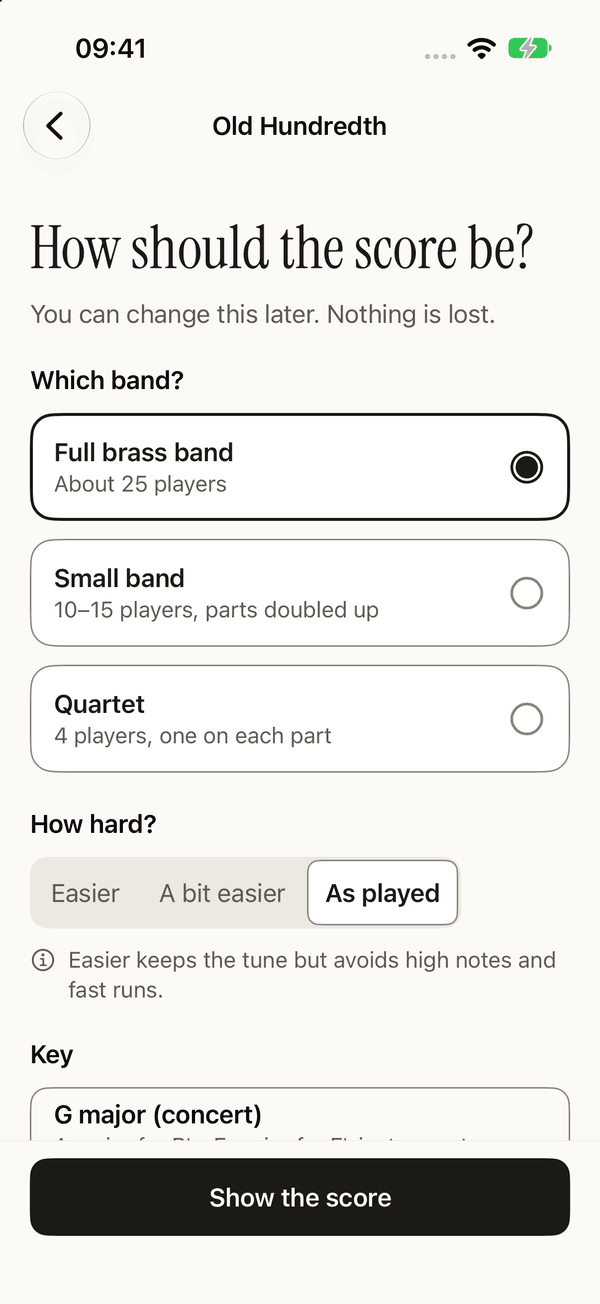
Three questions on one screen. Brasscribe remembers the answers for each song.
- Which band? Full brass band (around 25 players), a small band (10–15 players, with parts combined) or a quartet (4 players, one on each part). A recording of a whole band can be written for the small band or the quartet, not yet for the full band. A quartet needs a recording of the whole group, not a solo.
- How hard? As played, A bit easier or Easier: it keeps the tune but avoids high notes and fast runs.
- Key: as recorded, or step up and down to the key you want.
Nothing changes until you choose Show the score. You can come back and change it later, and nothing is lost.
The score and the player
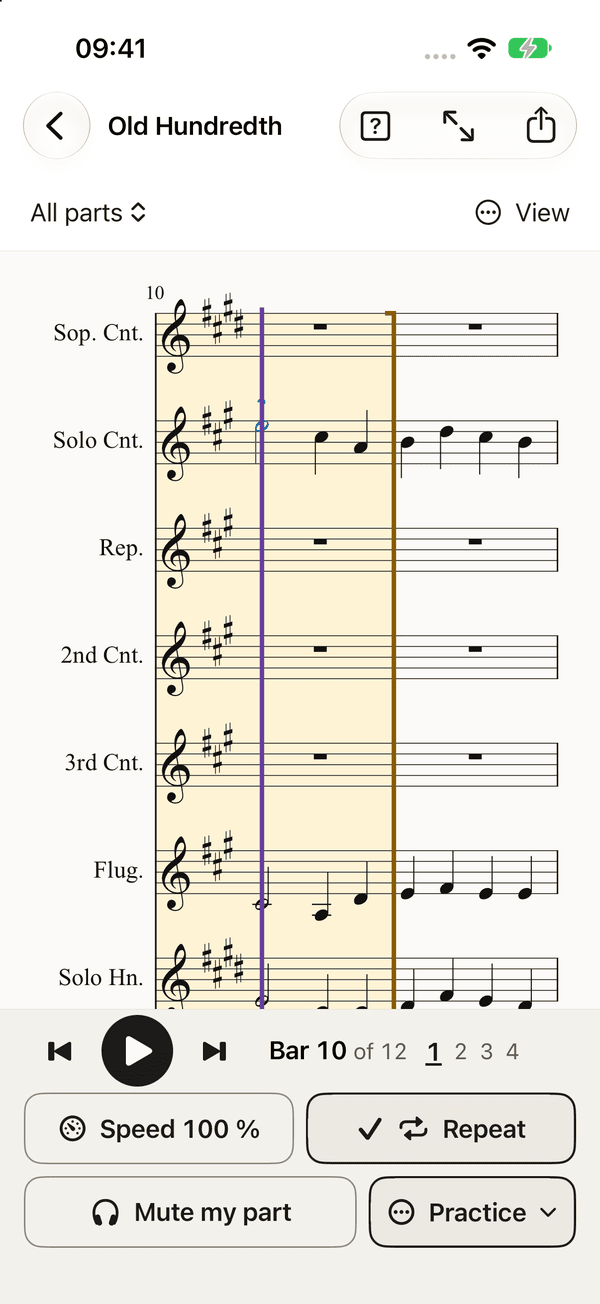
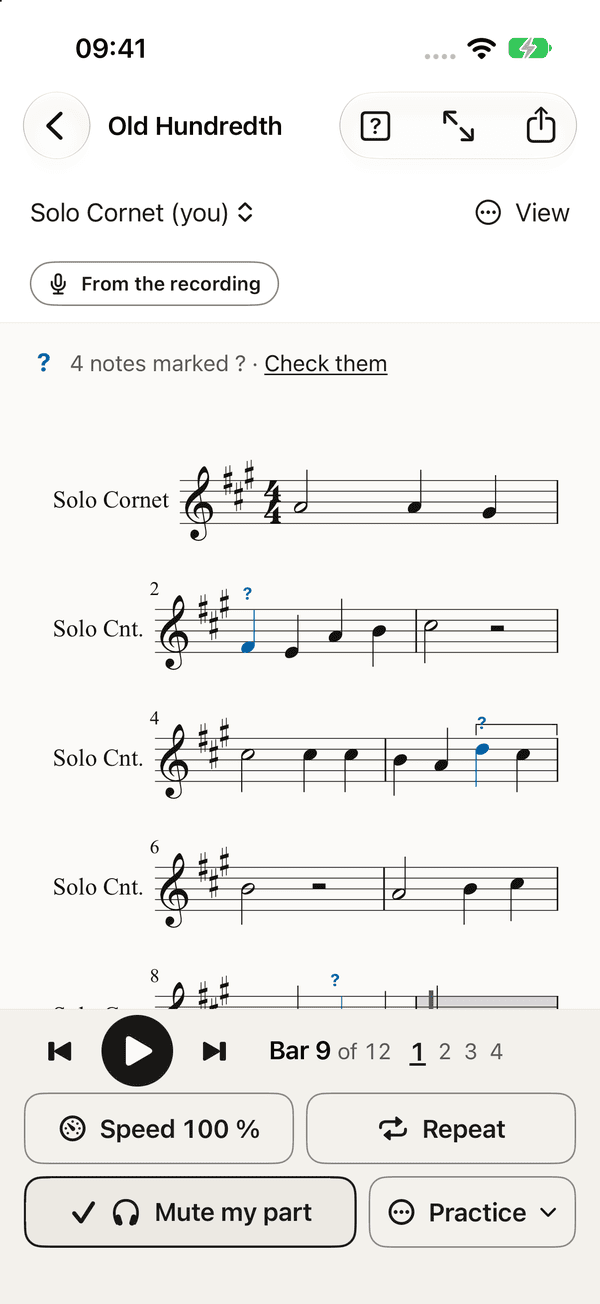
Reading
- All parts ▾ switches between the full score and one part. Your own part can be shown large, as a page.
- As written for B♭ / Concert pitch: written is what you read on your part; concert is how it sounds on a piano.
- Zoom in and out. Above 200%, the score reflows to one part and scrolls sideways.
Practising
- Play starts from the cursor. Previous and next bar move one bar at a time.
- Speed: from 25% to 150%. The tempo shows as "♩ = 102 (slowed from 136)".
- Repeat bars [12] to [13] plays a passage over and over. Stop repeating turns it off.
- Count-in: one bar of clicks before the music starts. Metronome: a click on every beat.
- Mute my part: your part goes quiet so you can play it yourself.
- In the parts list, Mute silences a part and Only this plays one part alone.
- On iPhone, iPad, Mac and Windows, choose Hear the band or Recording to switch to the recording at the same place.
The music stand
Music stand shows the music alone, page by page, for playing from the stand. Tap the music to show the controls: turn the page, slower and faster, repeat, and only your part. The pages can turn by themselves while the music plays. Page turners and pedals work when they send arrow keys or Page Up and Page Down; Space starts and stops the music. On a Mac, press F. (Not on Windows yet.)
Share or print
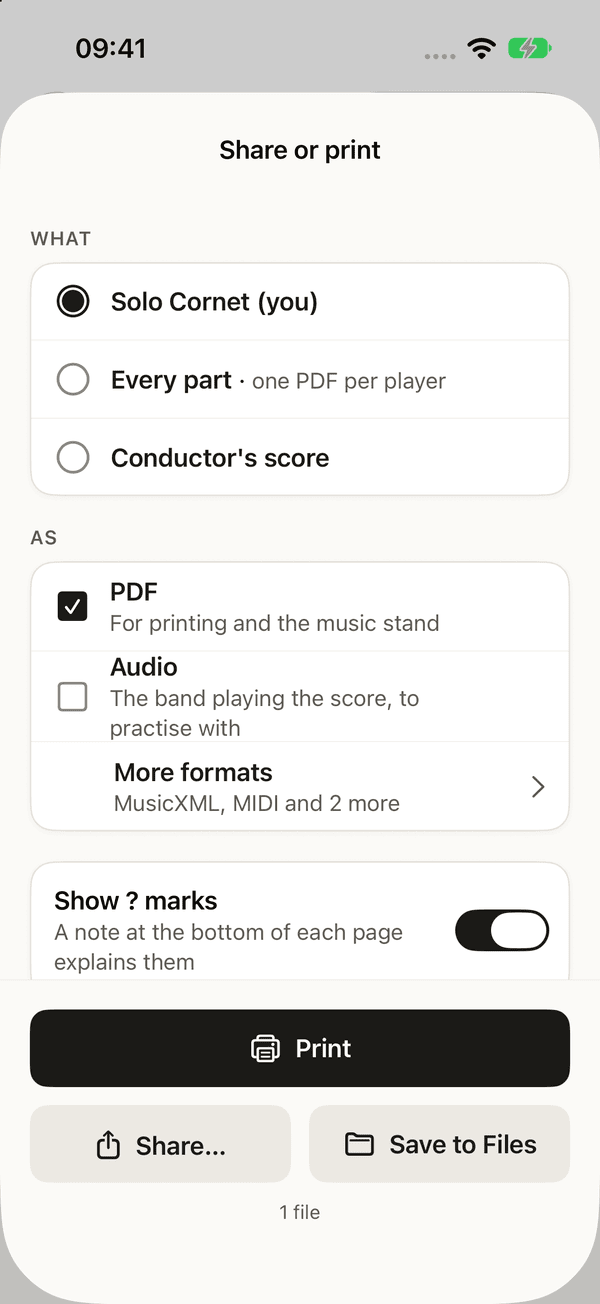
Choose Share or print, then what and how.
| What | For |
|---|---|
| Solo Cornet (you) | Your own part (the default) |
| Every part | One PDF per player |
| Conductor's score | All parts together |
| As | For |
|---|---|
| Printing and the music stand (the default) | |
| Audio (MP3) | Practising along |
| MusicXML | Editing in MuseScore, Sibelius or Dorico |
| MIDI | Other music apps |
| Talking score | Text a screen reader can read aloud |
| Braille music (BRF) | A braille display or embosser |
Notes nobody has checked keep their question mark in what you share, so the band knows which ones to listen for.
Bandroom on your computer
For a full band, Bandroom on your computer (a Mac or PC) makes the score and sends it to your phone over Wi-Fi. The recording goes from your phone to your own computer and nowhere else.
On a Mac with Apple silicon or a Windows PC (x64), install Bandroom (Brasscribe Bandroom in the list of programs) from the download. It runs quietly in the background; look for the Brasscribe mark in the menu bar at the top of a Mac's screen, or in the notification area of the Windows taskbar.
- The first run downloads what Brasscribe needs, about 10 GB, so keep about 15 GB free. The internet is needed only for these downloads.
- It asks for an access key from Hugging Face, to download the band writer. That model is free for non-commercial use only (CC BY-NC 4.0): accept its licence with your own Hugging Face account. Its makers add one condition: use it only for music you have the rights to, and you take responsibility for that. Bandroom keeps the key in your Keychain on a Mac, and in Credential Manager on Windows.
- On a Mac, after you update Bandroom, macOS asks once whether it may use its saved key. Enter your Mac password and choose Always Allow. Bandroom waits until you answer, then finishes its update by itself.
Then connect your phone:
- On the computer, choose Pair a phone. It shows a six-digit code and a QR code.
- Put your phone on the same Wi-Fi as the computer.
- In the app, open Settings, then the page for your computer. Some of the apps still call it Brasscribe on your computer.
- Your computer appears in the list, for example Brasscribe on Studio Mac. Choose it. On Windows, choose Find on this network first.
- Type the six-digit code and choose Connect, or scan the QR code with the phone's camera.
The app says Connected and shows the computer's name. You do this once for each phone or tablet: it stays paired, also when the computer restarts or gets a new address.
Details for the band's tech person
Without Bandroom (to run the engine by hand on a Mac or PC), start the engine from a copy of the repository:
pixi install
pixi run serve-lan
It listens on port 8765 on every network interface, prints the LAN address and the pairing code, and announces itself over Bonjour/mDNS as _scribe._tcp. Paired phones stay paired when the engine restarts.
- Allow incoming connections when the firewall asks (macOS: System Settings › Network › Firewall; Windows: private networks).
- Guest and office Wi-Fi often block devices from seeing each other. Type the address instead, for example
http://192.0.2.20:8765. - After five wrong codes in a row, pairing locks for a while, from 30 seconds up to 15 minutes. The code itself doesn't change.
--no-advertiseturns off the announcement. The Docker image does this by default.
Accessibility
- Works with VoiceOver, TalkBack and Narrator. Progress and changes are announced.
- Read aloud (View menu) reads the score as a talking score: bar by bar, in words.
- Uncertain notes are marked with a shape (a question mark, or one in a box), never with colour alone.
- Follows your system text size, dark mode, high contrast and reduced motion. Under Settings › Appearance, choose Match system, Light or Dark. With the system's contrast setting on, Brasscribe uses its high-contrast colours.
- Share or print includes talking score text and braille music.
Keyboard
On a computer, everything works from the keyboard. Single-key shortcuts can be turned off in Settings.
| Does | Mac | Windows |
|---|---|---|
| Play or pause | Space | Space |
| Previous or next bar | ← → | Ctrl+↑ Ctrl+↓ |
| Previous or next note | — | ← → |
| Next note marked with a question mark | — | U |
| Keep this note (while checking) | K | C |
| Repeat bars | L | L |
| Slower or faster | , . | - = |
| Count-in, metronome | C M | K T |
| Mute my part | A | — |
| Hear the band or the recording | O | O |
| Music stand | F | — |
| Leave the score | — | Tab or Esc |
On the Mac, the Playback menu lists them. On Windows, F1 lists every shortcut.
When something goes wrong
Your recording is always kept. Every message says what to do next.
My computer doesn't show up in the list
Check that Brasscribe is running on the computer and that both are on the same Wi-Fi. Guest and office networks often hide devices from each other: type the computer's address instead. Your tech person can find it under Details for the band's tech person.
It found my computer but can't connect
The phone may have switched to mobile data because the Wi-Fi is weak. Move closer to the router, or turn off mobile data for a moment. On the computer, check that the firewall allows Brasscribe.
"Wrong pairing code"
Type the six digits the computer shows right now. After five wrong tries, pairing locks for a while; wait, then type the same code again.
The recording is silent
Streaming apps usually block recording. Play the music out loud and record it with the microphone, or open a file you have.
Lots of notes are marked with a question mark
Check the answer to What is this?: a band recorded as One instrument gives odd results. A clearer recording, with less talking and room noise, also helps.
"Not for percussion yet"
A solo take can't be written down for the percussion part yet. Record the band instead: you get a percussion part when the recording has drums.
"Bandroom on your computer is too old"
Update Bandroom on the computer, or the engine if you run it by hand. Some of the apps say “Brasscribe on your computer” in this message. An older one can still make a score, but not for every instrument or choice.
Sounds and credits
The band sounds are part of every app; there is nothing else to download for playback. Every sample is free to share:
- Brass and concert percussion from VSCO 2 Community Edition by Versilian Studios (CC0 1.0).
- Brass from the University of Iowa Musical Instrument Samples, Electronic Music Studios, Lawrence Fritts.
- Drum kit and hand percussion from MuseScore's MS Basic SoundFont (MIT), based on FluidR3 by Frank Wen, FluidR3Mono by Michael Cowgill and MuseScore_General by S. Christian Collins.
No cornet, tenor horn, baritone or euphonium samples are freely available, so those are shaped from trumpet, horn and trombone. The full list of sources and licences is in sounds/LICENSES.md. Notation is engraved with Verovio (LGPL-3.0) on iPhone, iPad and Mac, and with alphaTab (MPL-2.0) on Android and Windows. Headings are set in Instrument Serif (OFL).